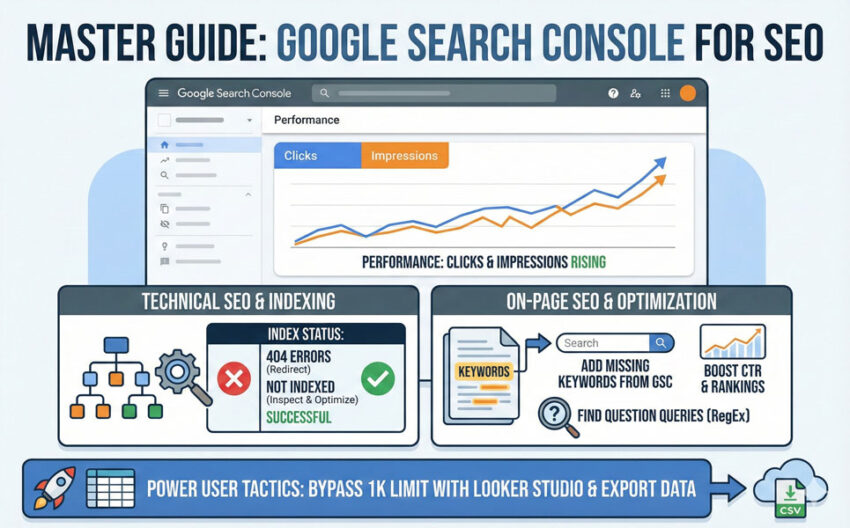
Google Search Console (GSC) is the most powerful SEO tool available because it provides direct data from Google’s database. Unlike third-party tools (Semrush, Ahrefs) that use estimates, GSC shows exactly how Google crawls, indexes, and ranks your specific website.
1. Performance Reporting & Opportunity Hunting
The Performance report is the “heart” of GSC. It tracks four core metrics:
- Clicks: How many people clicked from Google to your site.
- Impressions: How many times your URL appeared in a search result (even if the user didn’t scroll down to see it).
- Average CTR (Click-Through Rate): Clicks divided by Impressions.
- Average Position: Your rank on Google (roughly averaged over time).
Finding “Low-Hanging Fruit”
To find easy wins, organize your queries by Impressions:
- Look for keywords with High Impressions but Low Clicks.
- This indicates you are ranking on page 2 or 3 for a high-volume term.
- The Goal: Optimize that page to move into the top 3 spots to capture that massive existing traffic.
2. The 80/20 Rule for On-Page SEO
The most effective way to grow traffic is to optimize what is already working.
Pro Tip: 90% of your growth opportunities live in the top 20 pages of your Pages report.
The Optimization Workflow:
- Filter by Page: Go to the Pages report, click a specific URL, then switch back to the Queries tab.
- Identify Missing Keywords: Google will show you every keyword it thinks is relevant to that page.
- The “Ctrl+F” Test: Open your live page and search for those keywords. If they aren’t in your text or headings, add them.
- Expand Topical Depth: If GSC shows you are ranking for “Benefits of X” but you only mention it briefly, add a dedicated H2 section for “Benefits of X” to satisfy Google’s intent.
3. Technical SEO: Indexing & Crawling
If Google doesn’t index your page, it doesn’t exist. The Indexing Report tells you exactly where Google is struggling.
Key Issues to Monitor:
- 404 Errors: Pages Google can’t find. Use 301 Redirects to point these to live, relevant pages.
- Crawled – Currently Not Indexed: Google saw the page but decided not to show it. This usually points to a quality or duplicate content issue.
- Discovered – Currently Not Indexed: Google knows the URL exists but hasn’t had the “crawl budget” or desire to visit it yet.
- URL Inspection Tool: Use this to “Request Indexing” for new pages or to see the Raw HTML Google sees. This is vital for checking if Google can read content inside JavaScript.
4. Advanced GSC Features
Regular Expressions (RegEx)
You can use RegEx filters to find high-intent “Question” keywords that your site is already appearing for.
- Filter Type: Query -> Custom (Regex)
- The “Question” String:
^(who|what|when|where|how|why|is|are|do) - Use Case: This reveals exactly what questions users are asking so you can create dedicated FAQ sections or blog posts.
Crawl Stats (Hidden Setting)
Go to Settings > Crawl Stats to see how often Googlebot visits your site.
- Look for spikes in 404 or 5xx errors.
- If Google is spending 10% of its time crawling 404 pages, it’s wasting “crawl budget” that should be spent on your money pages.
5. Bypassing GSC’s 1,000 Row Limit
The standard GSC interface limits you to 1,000 keywords, which hides a “treasure trove” of long-tail data.
- The Fix: Connect GSC to Looker Studio (formerly Data Studio).
- Benefit: You can export 20,000+ rows of keyword data to a CSV for deep analysis, finding thousands of niche terms you didn’t know you were ranking for.
Summary Checklist for your Next Audit
- [ ] Performance: Compare the last 3 months vs. the previous year to find declining pages.
- [ ] On-Page: Add GSC-suggested keywords to the top 20 traffic-driving pages.
- [ ] Technical: Redirect 404s and inspect “Not Indexed” money pages.
- [ ] RegEx: Identify 5 new “Question” blog topics using the RegEx filter.
- [ ] Data: Export a full keyword list via Looker Studio once a month.